How it works
Two letters.
One key.
Use the keys on your side for both halves of the keyboard. Press Space, and Hamburger finds the word you meant.
Start with the mirror.
Q and P sit opposite each other. With your left hand, press Q for either letter. With your right hand, use P. The other pairs work the same way.
Try the interactive demoYour fingers
already know it.
“The human brain controls typing movements according to the finger used, rather than the spatial position of the key.”
Matias, MacKenzie, and Buxton, 1996
When you type P, you do not think about where the key is. Your right little finger reaches up from the home row. Make the same move with your left little finger and you land on Q, which in Hamburger also types P. Every letter works this way: same finger, same reach, other hand. So a touch typist is not learning a new layout. They are reusing the one they already have.
Edgar Matias, I. Scott MacKenzie, and William Buxton tested this mirror in the 1990s and called it Half-QWERTY. Ten touch typists, using only their non-dominant hand, passed hunt-and-peck speed after 3 to 4 hours of practice and reached half their two-handed speed after about 8. Their version held Space to flip a key; Hamburger works the letter out from the whole word instead. Read the Half-QWERTY study
If you look at the keys while you type, the mirror still helps: it is half of a layout you already know. Expect learning to take longer than it would for a touch typist.
Finish the word
with Space.
For “type,” your left hand presses T T Q E. Each key has two possible readings; Hamburger uses the whole word to choose between them.
T T Q E Space
Keep control as you write.
Some key sequences can mean more than one word. Hamburger offers alternative readings when candidates are close, and corrections can be reversed.
The Mac app uses surrounding words and learns your vocabulary locally. The browser demo is a simpler dictionary-based example.
Hamburger is built for the US QWERTY layout and works best in native Mac text fields. Layouts, apps, and known limits
How does it choose a word?
Common words, sentence context, and your vocabulary help rank the possible readings. You can manage learned words in the app.
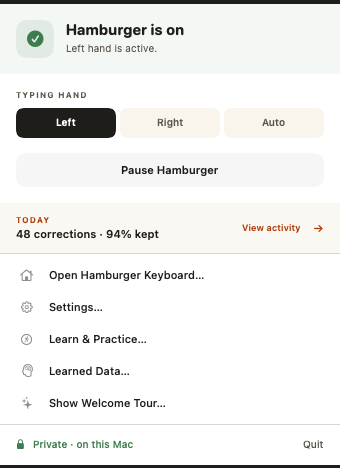
Choose a hand or pause corrections from the menu bar. Auto mode detects the active hand word by word.
Practice, then use it
in your own writing.
Start with the guided practice in Hamburger. Then try a short note or email in an ordinary Mac text field. The mirrored movement takes practice; you can pause whenever you need to.
Corrections run on your Mac. Secure password fields are excluded, and you can pause correction in individual apps.
Getting comfortable with one handAbout keyboard permissions